How to connect Interactive Brokers to Portseido
In this article, we provide a step-by-step guide on how to connect your Interactive Brokers account to Portseido via broker connection.
There are two steps to complete the broker connection with Interactive Brokers:
- Enable Connection — Receive new trade data starting from today
- Upload Historical Data — Import past transactions via an XML file from Interactive Brokers
Step 1: Enable Connection
-
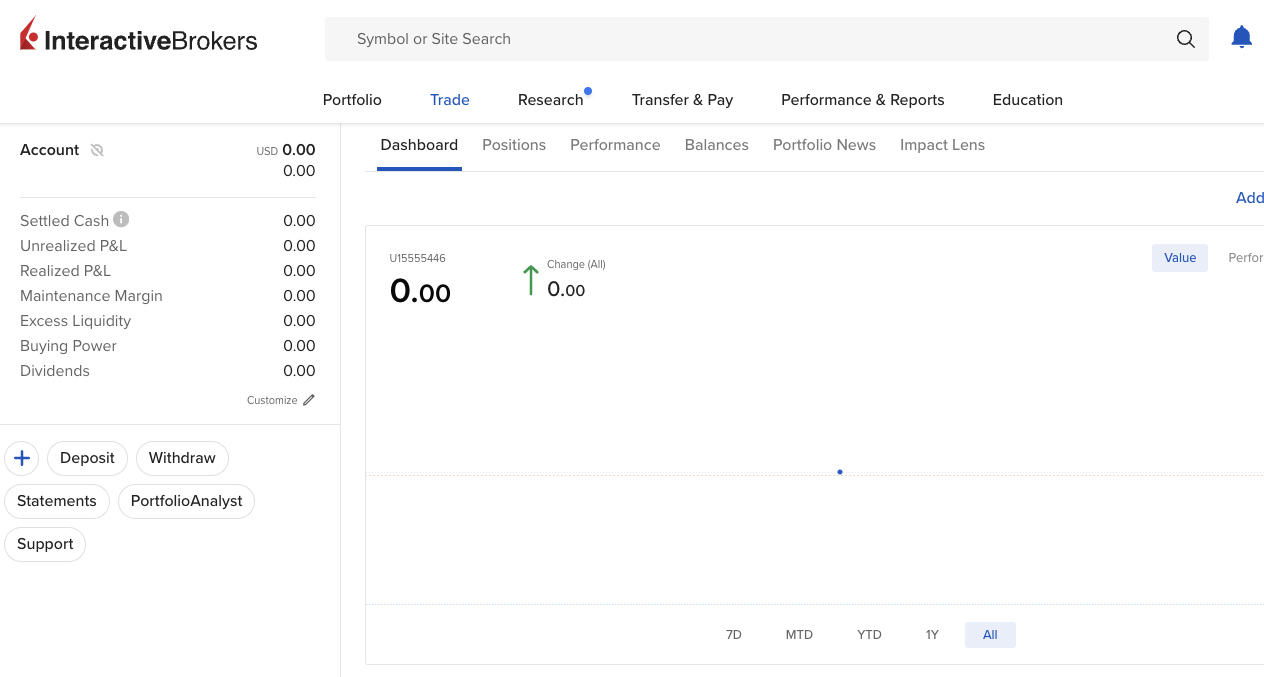
Sign in to Interactive Brokers
-
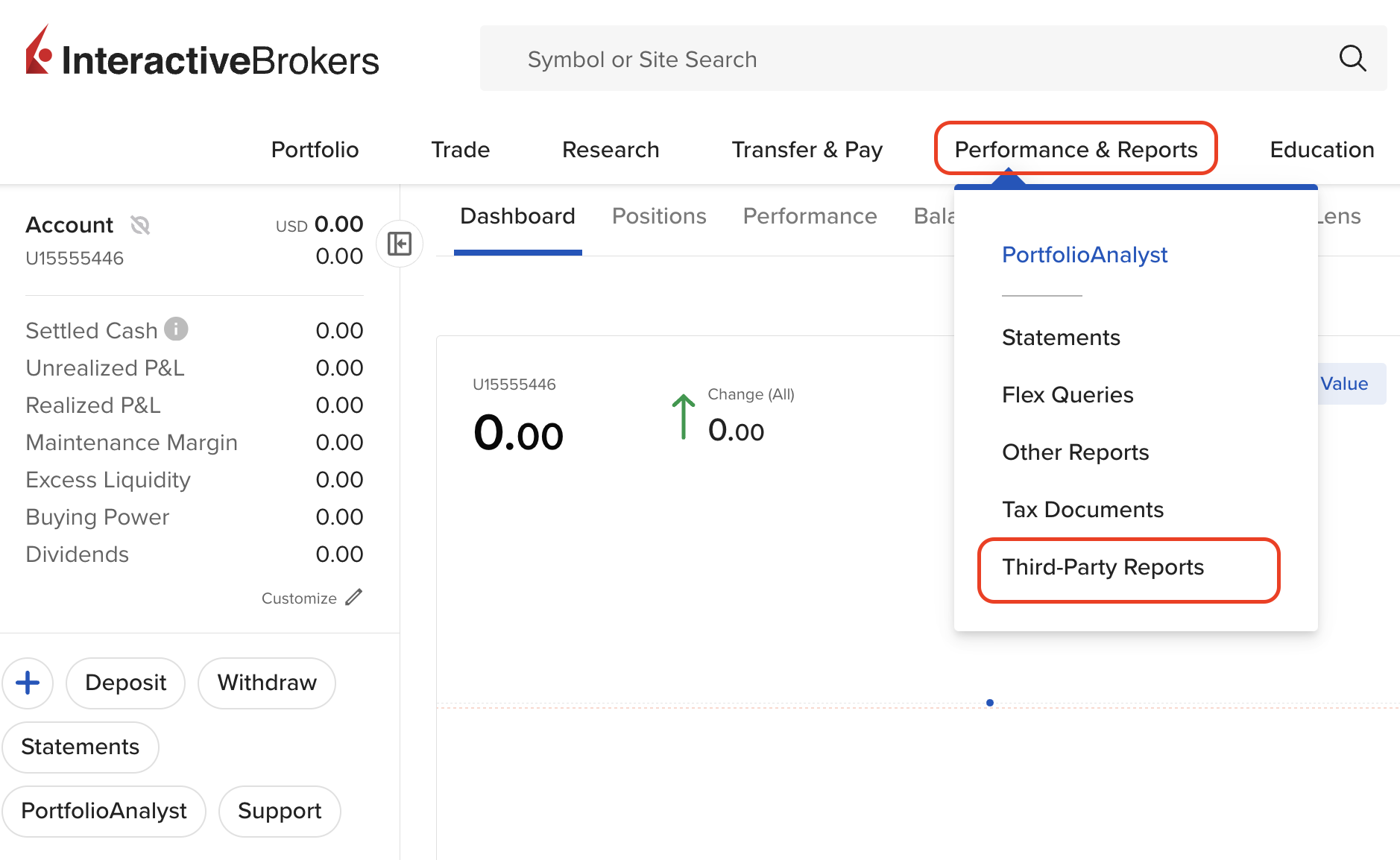
Click Performance & Reports and Third-Party Reports on the top menu
-
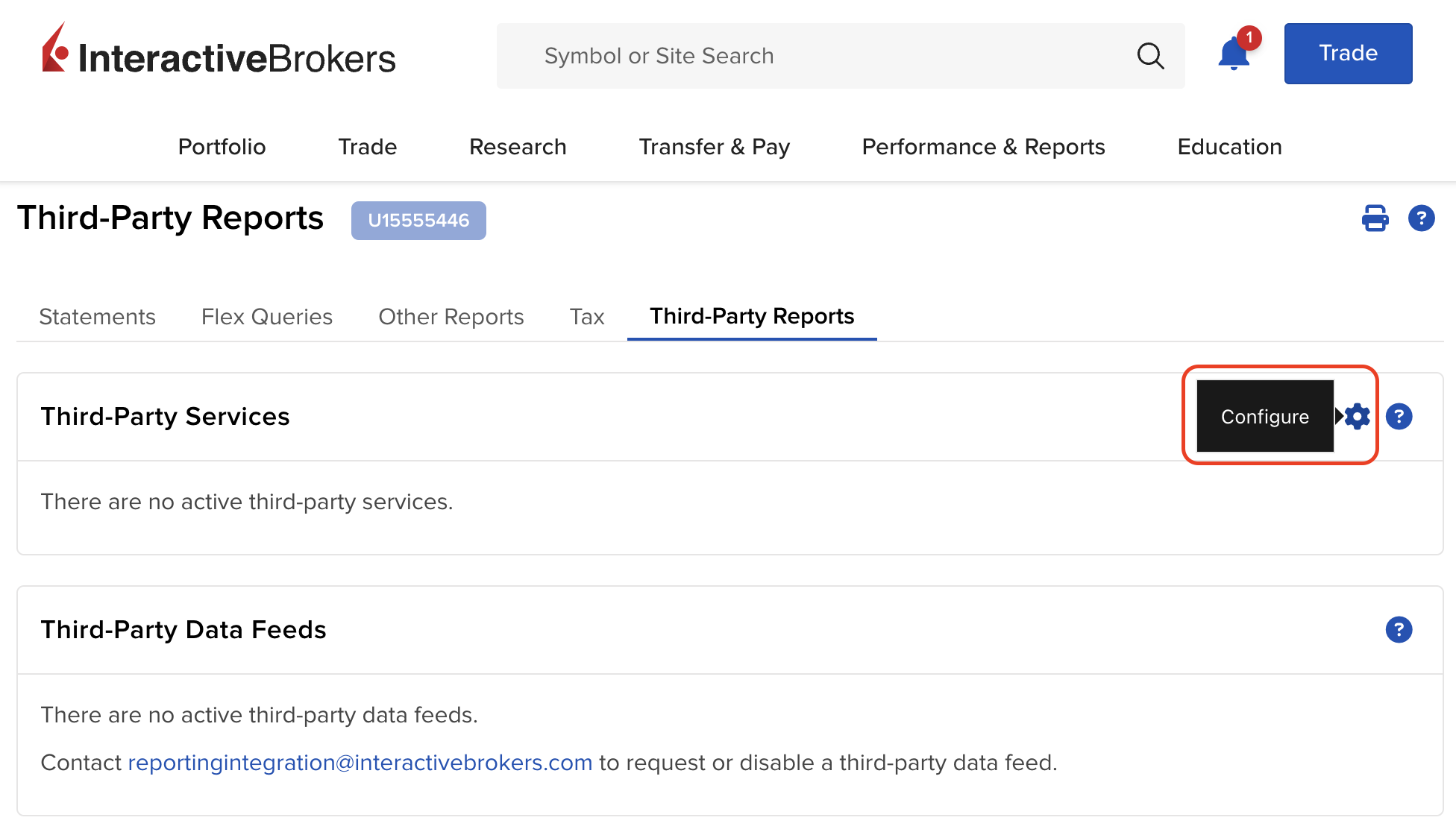
Click Configure (Gear icon) in the Third-Party Services section
-
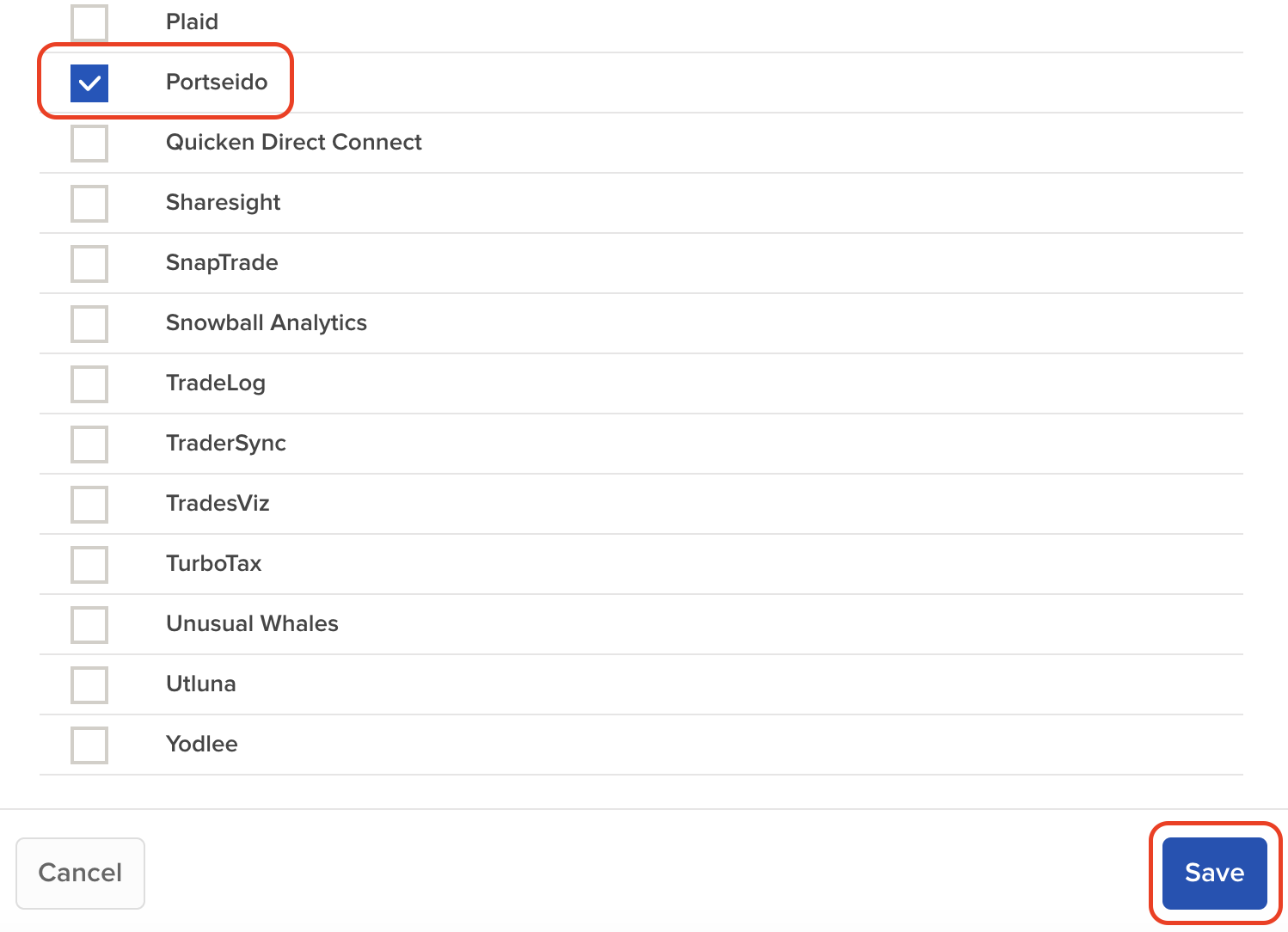
Select Portseido and save your selection
-
Copy your Account ID, Token, and Query ID and paste them inside Portseido
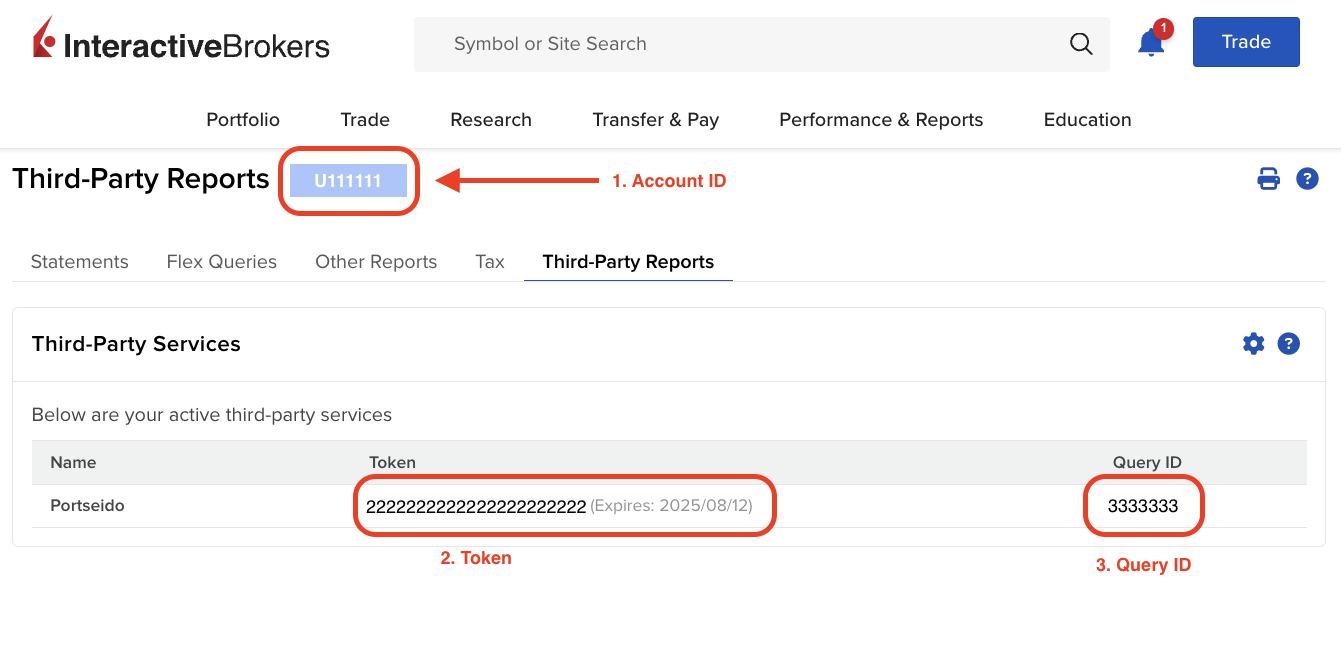
Note: This step only provides ongoing data from today onwards. To import your past trades, proceed to Step 2.
Video Tutorial
Step 2: Upload Historical Data
Due to the lack of data available through the live connection, you will need to upload your past trades separately.
To import your past trades, you will need to upload an XML file downloaded from IBKR. See How to export your trades from Interactive Brokers for step-by-step instructions.